

Your personal organisation
When you register, Light creates an organisation that you own, named after your email address, for example Personal (ana.lopez). You can create projects and publish to it straight away, rename it, and invite people into it. It is always yours: it can’t be deleted or given to someone else.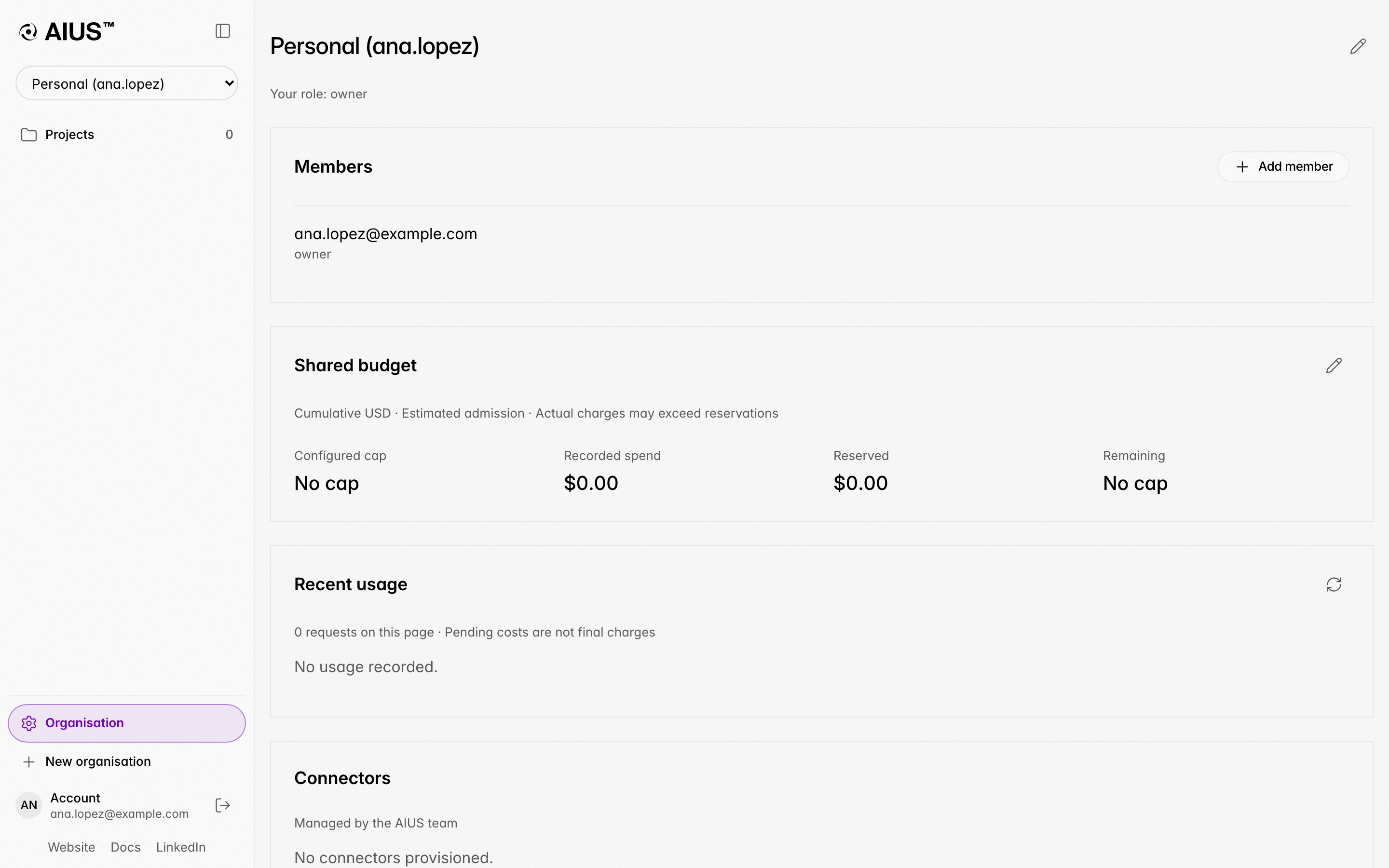
The organisation page of a new account
Where you work
One of your organisations is the one you work in: new projects start there, and models from the terminal run on its budget, except in a folder linked to a project, where the project’s organisation pays. It is your personal organisation until you switch:- in the terminal, open
/organisation, pick the organisation and choose Switch to this organisation (or runaius platform organisation <id>); - on the web, open the organisation’s Settings tab and choose Make it my default.
Shared organisations
For a team, choose New organisation in the sidebar, or Create an organisation… in the terminal’s/organisation, and give it a name. You own
it. Nobody can join an organisation on their own: owners and admins invite
people by email with a role, and they join when they accept.
An invitation waits on the invited email address for 30 days. The person finds
it on the Projects page after signing in, or registering, with that address, and
the terminal tells them about it when it starts; they accept or decline in either
place. Light also emails them, at most once a day for the same address, and up to
twenty invitation emails a day from each person and for each organisation. Past
that the invitation is still made, and AIUS Light says it didn’t email them, so
let them know yourself.
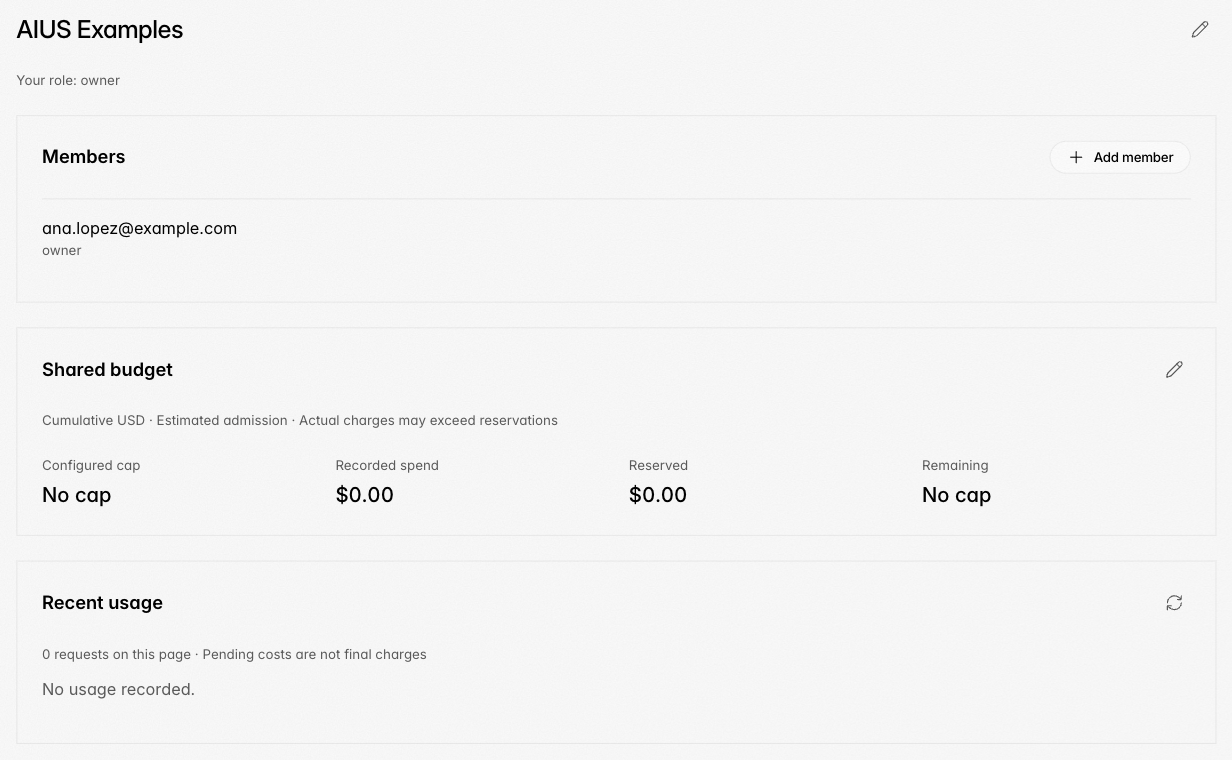
An organisation page
Managing organisations from the terminal
/organisation (also /org) lists invitations waiting for you and your
organisations, with the one you work in marked. For each organisation you can
switch to it, see its members, invite someone and pick their role, see and
revoke pending invitations, and, depending on your role, change a member’s role,
remove them, rename the organisation, transfer ownership, leave it or delete it.
Its budget and usage open on the web.
Conversation permissions
Aius’s permission posture is deny-all and whitelisting: an organisation can decide, for every conversation that runs in a folder linked to one of its projects — on every member’s computer — what the agent may do at all. Owners and admins set it on the organisation page’s Permissions & security tab, under Conversation permissions; every change is recorded in the organisation’s activity.- Rules match a permission and a pattern with wildcards (for example
bashanduv pip install *), and the last matching rule decides: allow whitelists it, ask always asks the person, and deny refuses it outright — nobody’s own settings, saved answers or the allow-all bypass can undo an organisation deny. - When no rule matches sets the organisation’s level: Ask first (the default and most control: Aius asks before it opens other files and folders on your computer or uses services you connected), Allow all (most speed and freedom: Aius never asks; choose it once you trust Aius, and keep checking its work) or Rules only (Aius does only what the rules allow). Start strict and grant Aius more autonomy as you trust it more.
- Stricter projects: a project can ask more than its organisation, even when the organisation allows all, never less.
- People may choose Allow all for a session decides whether members may turn on the bypass in governed conversations. Not allowed means every request follows this policy and the person’s answers; the web won’t even send an allow-all command for a conversation in the organisation’s projects.
File sync
Owners and admins choose what a computer syncs from a folder linked to one of the organisation’s projects, on the organisation page’s Permissions & security tab under File sync:- Only Aius’s work (the default): conversations, the files Aius makes, views and reports, and anything a person asks Aius to sync. Nothing else leaves the computer.
- New and changed files: Aius’s work, plus every new and changed file and folder, both ways: a file added in AIUS Light comes down to the computer too. Nothing is ever deleted on either side. Files git ignores stay on the computer.
- Sync all: the whole folder, hidden files included, kept identical both
ways: a file deleted on one side is deleted on the other. A file changed on
both sides keeps the computer’s version, and AIUS Light’s is saved beside
it as
name.aius-light-<version>.ext.
Inference and providers
On the same tab, under Inference & providers, owners and admins choose whether Aius may use any provider or private inference only, and can block single providers (private, OpenRouter, GMI Cloud, Anthropic, OpenAI). It applies to chat and to media. A project can only be stricter: it can keep itself on private inference or block more providers. A request no allowed provider can serve fails with the reason instead of going elsewhere. In the terminal,/organisation has a Permissions & security entry for
each organisation, and the sidebar’s Permissions & security line links to
the same tab; both open it in your browser with a click.
Default model
Every new conversation in an organisation’s projects starts on its default model, in the TUI and in AIUS Light. Unless an owner or admin picks another, it is Pareto, AIUS’s default: a blended model that asks several models for each request and blends their answers, at one flat price. Owners and admins change it on the organisation page’s Permissions & security tab, under Default model: it lists the chat models with the same search and Category, Price and Lab filters as/models, and shows each model’s lab, price tier, price and what
it suits best. The organisation pays, so its default comes before a member’s own
model setting. Anyone can still pick another model for a conversation with /models,
and asking Aius to “switch to my default model” goes back to it. In /models
the default model is marked Default. See Models and
Prices.
Deleting an organisation
The owner of an organisation other than their personal one can delete it: on its Settings tab choose Delete, or use/organisation in the terminal, and type its
name to confirm. Everyone loses access to its projects and pending invitations are
cancelled. It can’t be undone.
Budget and model use
Model requests from the terminal are billed to the organisation you work in (see above). On the organisation’s Settings tab, the owner can set a shared budget: a cumulative cap in US dollars for requests billed to the organisation. Recent usage lists those requests with their recorded cost; members see their own. While a request runs, the most it could cost is set aside from the budget. When it ends, it is charged what the model provider recorded divided by 0.75 (AIUS keeps 25% of what you pay), and the rest is freed. A request you stop before it finishes (Esc in the terminal) is settled the same way, usually within a few minutes, so the budget it held comes back. One stopped before the model provider recorded it stays set aside until AIUS staff settle it.Monthly limits for members
Owners and admins can cap how much of the organisation’s credit each member uses in a calendar month. On the organisation page, Members lists everyone’s Monthly limit and what they have Spent this month; the sliders button on a member’s row sets a limit in US dollars, or No limit (the default). Limits start again at midnight UTC on the 1st, and nobody limits the owner. Admins set limits for everyone but the owner and themselves. Members and viewers see their own limit and spend on the same page. A member who reaches their limit is told so in the terminal, with the limit and the organisation, and asked to see an owner or admin; everyone else keeps working. Because a request sets aside the most it could cost before it runs, a large request can be refused shortly before the limit is reached, while a smaller one still fits. If AIUS’s usual model provider stops answering, Claude and GPT models keep working: Aius runs them on Anthropic and OpenAI directly, at the same prices, and nothing changes for you. A request stopped while it runs there is charged for what it had produced. Pareto runs only through the usual provider, so while it is down Aius says Pareto isn’t available and asks whether to switch to a model that can run, such as Claude Sonnet 5.5. Switching sends your last message again on that model; switch back any time with/models.
Overview
An organisation’s page opens on its Overview, which shows how the organisation uses AIUS Light. The tabs that follow are Members, Computers, Usage, Activity, Permissions & security, Settings (name, logo, budget, default organisation, transfer and delete) and, for owners and admins, the Audit log.- At a glance: members, projects, conversations, computers, connections, what was spent this month and the credit available.
- Spend and credit: spend this month, last month, in the last 30 days and in total, the credit available and how long it lasts at the last 30 days’ rate, and the monthly plan.
- Members: each member’s role, when they were last active, their conversations, model requests, spend this month, monthly limit and computers.
- Projects and files: projects, files, reports published and the busiest projects. Private projects are counted but not named.
- Computers and connections: every member’s computers running the TUI, and the connections the computers that are on report.
- Trends: spend, model requests, tokens, the most used models, tokens by member, conversations, active members and reported runs over 7, 30 or 90 days, 12 months, all time or dates you choose.
Starting credit
Every account’s personal organisation comes with $100 of free credit to start with. An organisation you create starts with none: add credit for it before its members’ model requests can run.Payments
Payments in the menu shows an organisation’s credit: what is available, and what is held while requests finish (held credit is not a charge). Owners and administrators buy credit and choose plans there; everyone else sees the budget, whether a plan runs and their own usage.- Add credit buys credit once: choose $50, $100 or $200, or type any whole amount from $5 to $1,000, and pay on Stripe’s page.
- Monthly plans add credit every month: $20, $100 or $200 a month, each adding its price in credit. An organisation’s first paid month also adds the same amount again, once, as a welcome bonus. Choose a plan and Upgrade. Manage renewal stops it: it ends when the month already paid is over, and the credit already added stays.
- Change next to the card opens Stripe’s page to save another card; it pays future payments and the plan’s next months.