What is in it
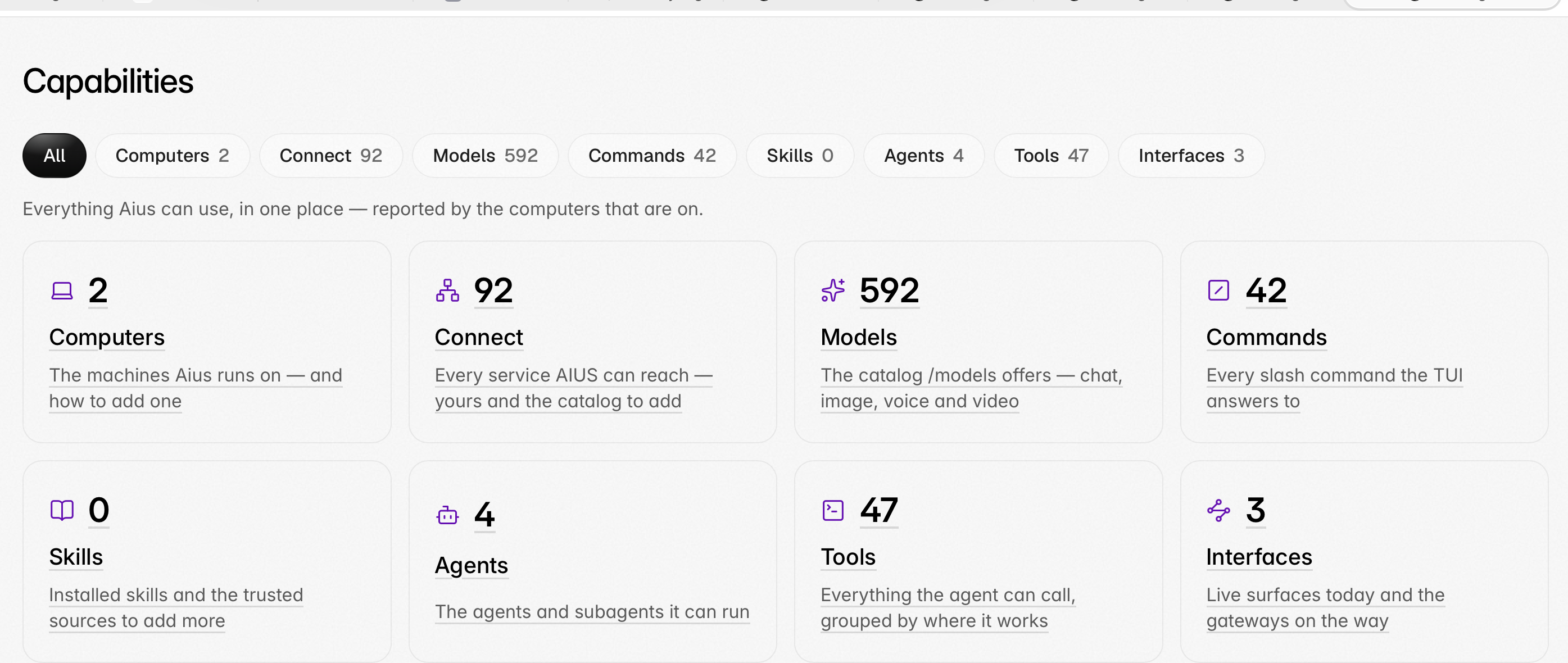
- Computers — every machine that reports in: its folders, system, version, online state and how many connections it serves, plus the same set-up steps the empty Projects state shows, so a server or VM joins the same way.
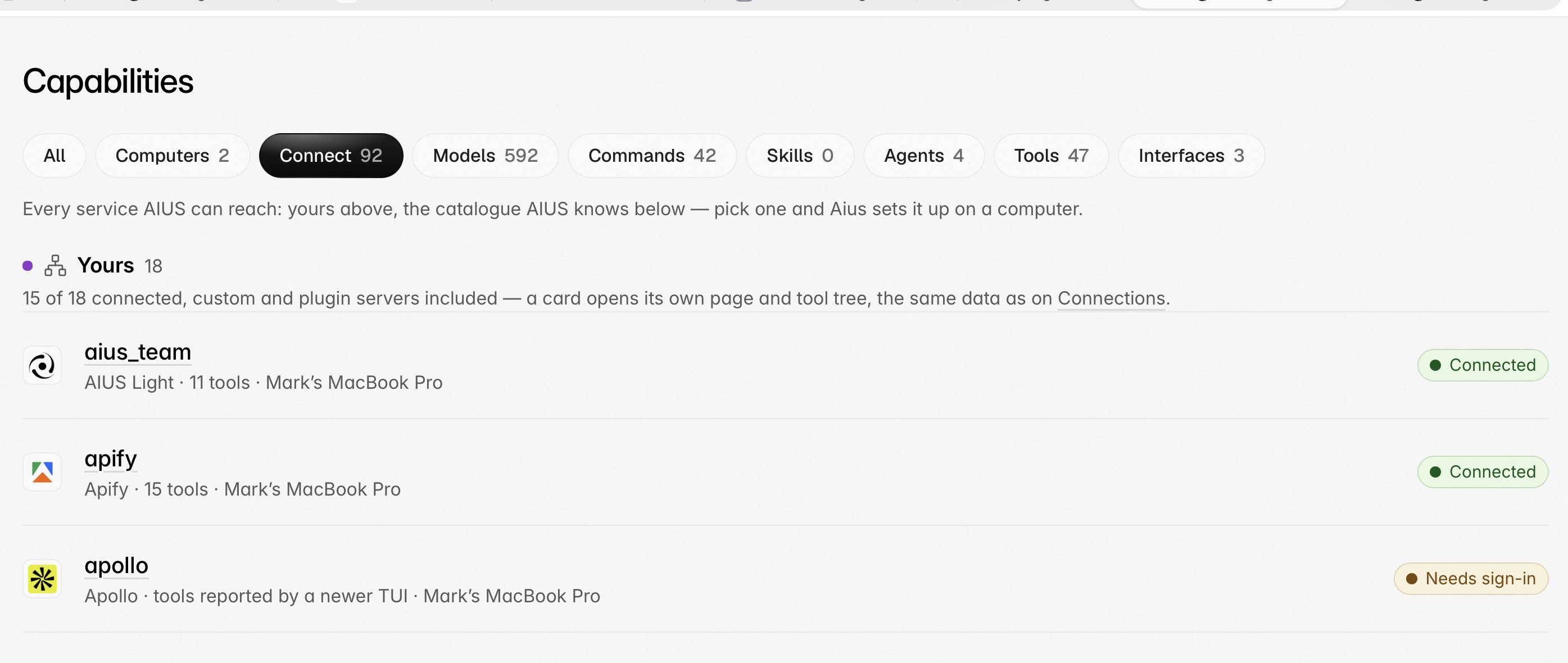
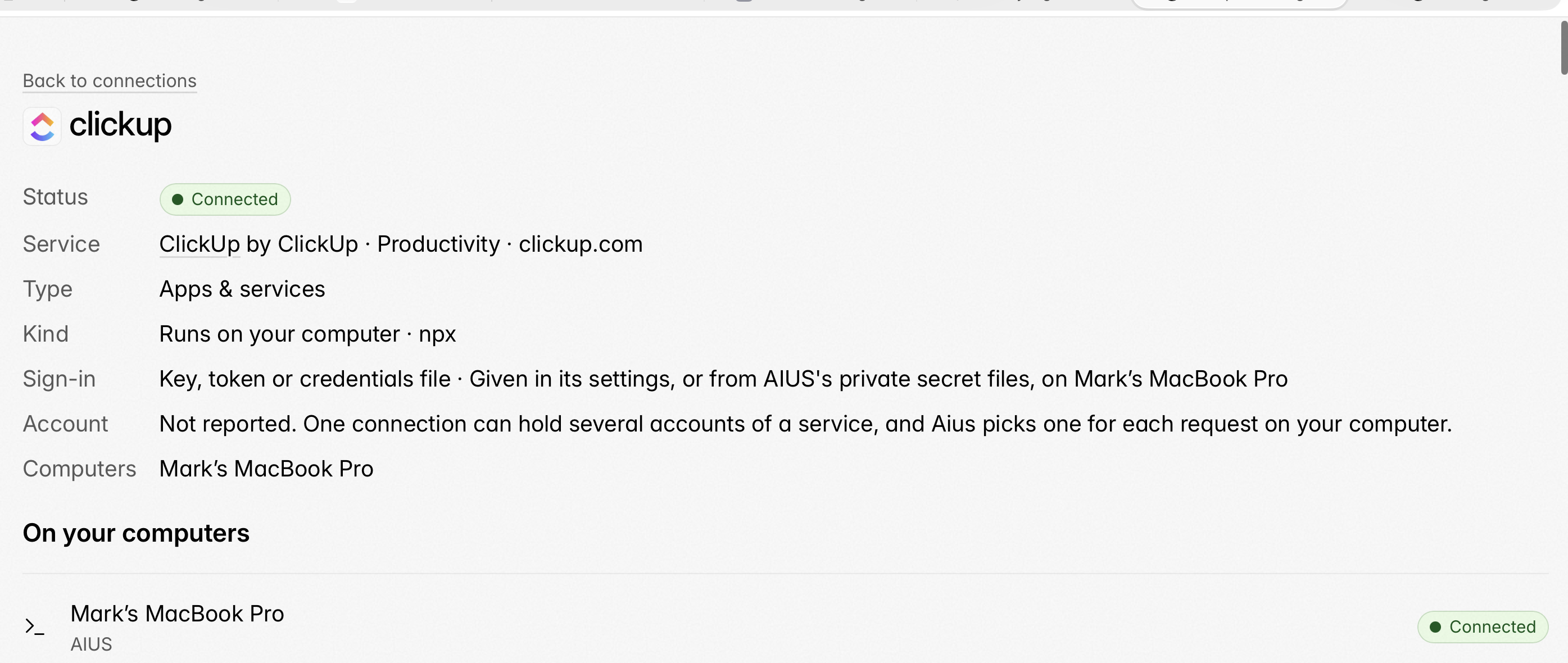
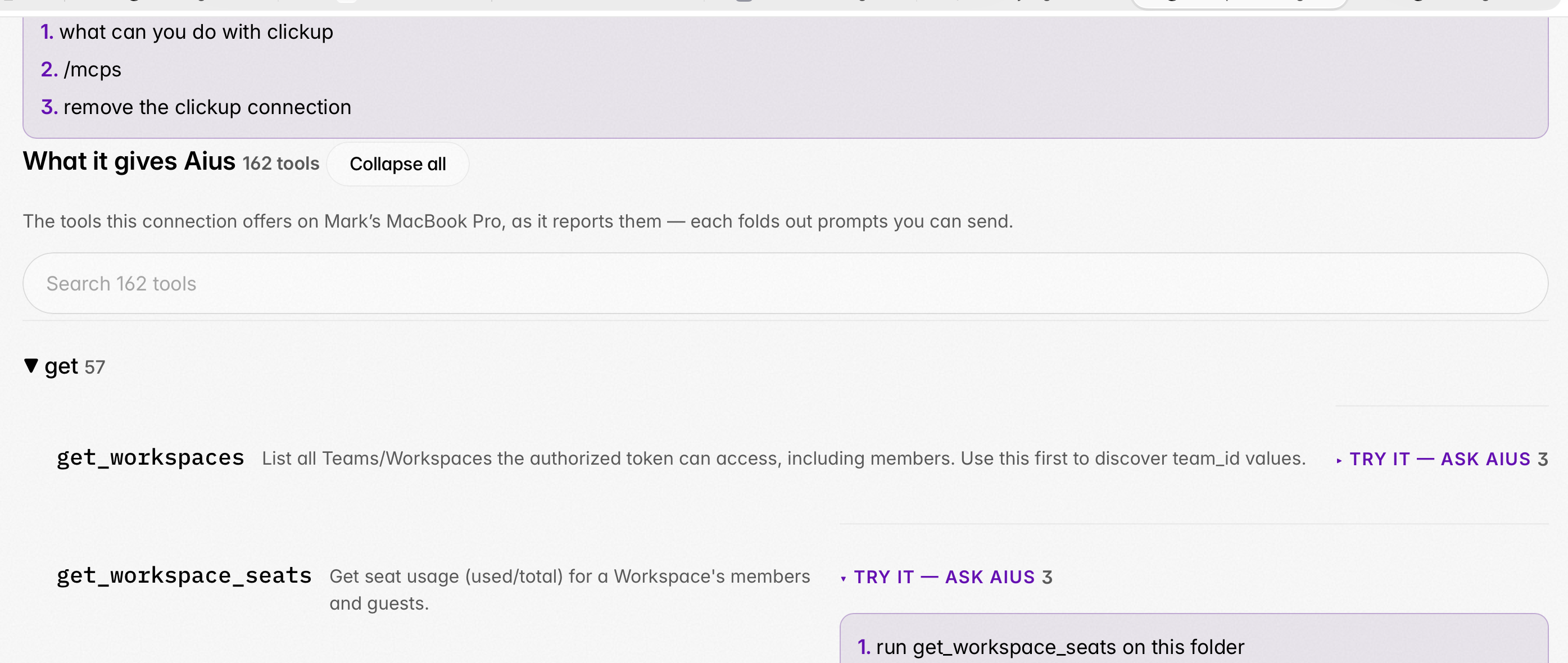
- Connect — your configured connections as tiles (logo, status, computer, tool count, each linking to its page and tool tree), above a catalogue of services AIUS knows but no computer has yet. Each card explains what the connector is for, how sign-in works, and has a Connect button that opens a conversation in the AIUS Launcher project with the request already typed. Credentials stay on the computer; AIUS Light only ever receives the connection’s name, status and tool list.
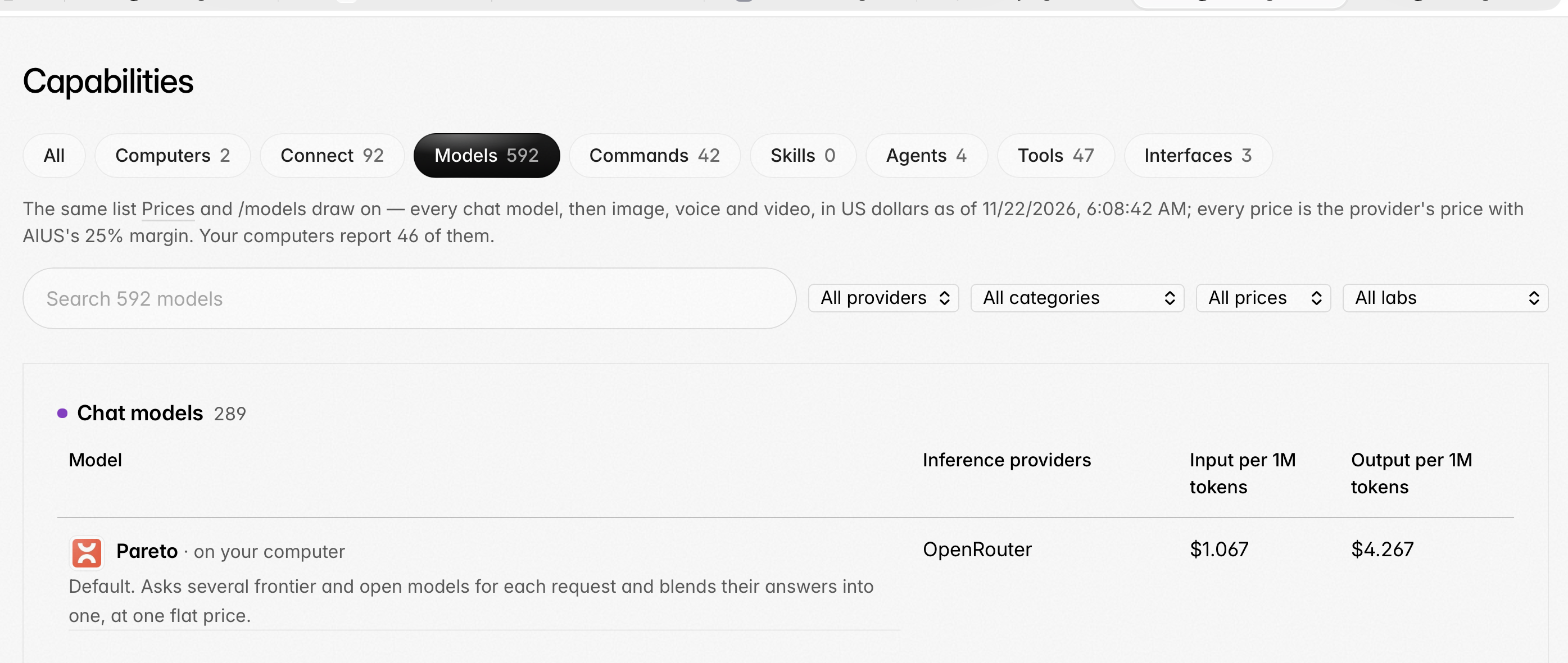
- Models — the same renderer and data as Prices: every chat and media model, the same search, category, price, lab and provider filters, with a mark on the models your computer’s TUI reports.
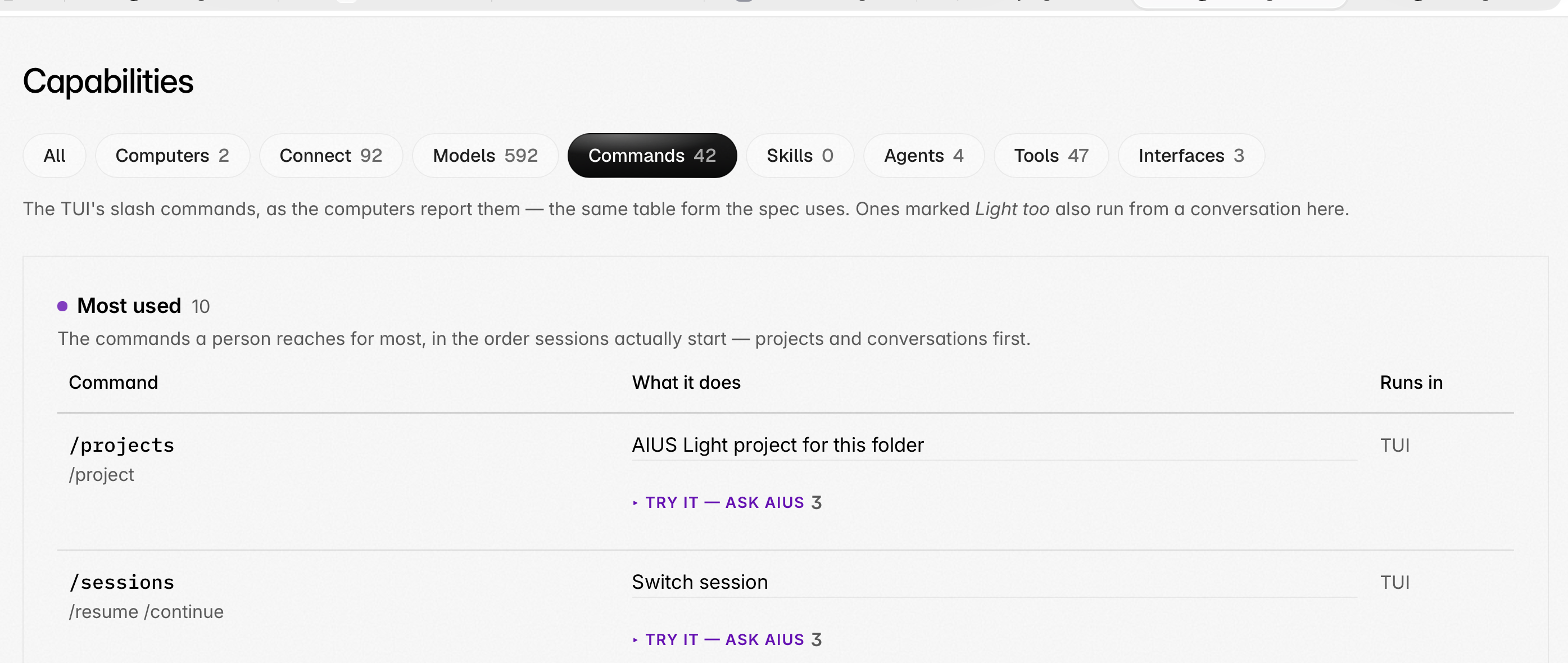
- Commands — the full TUI and Light command inventory, ordered by how work starts: the most used first, then grouped by what each command works on — with aliases, a one-line description, and whether it also runs in Light.
- Skills — the skills installed on your computers, plus the trusted public
libraries Aius can pick from (
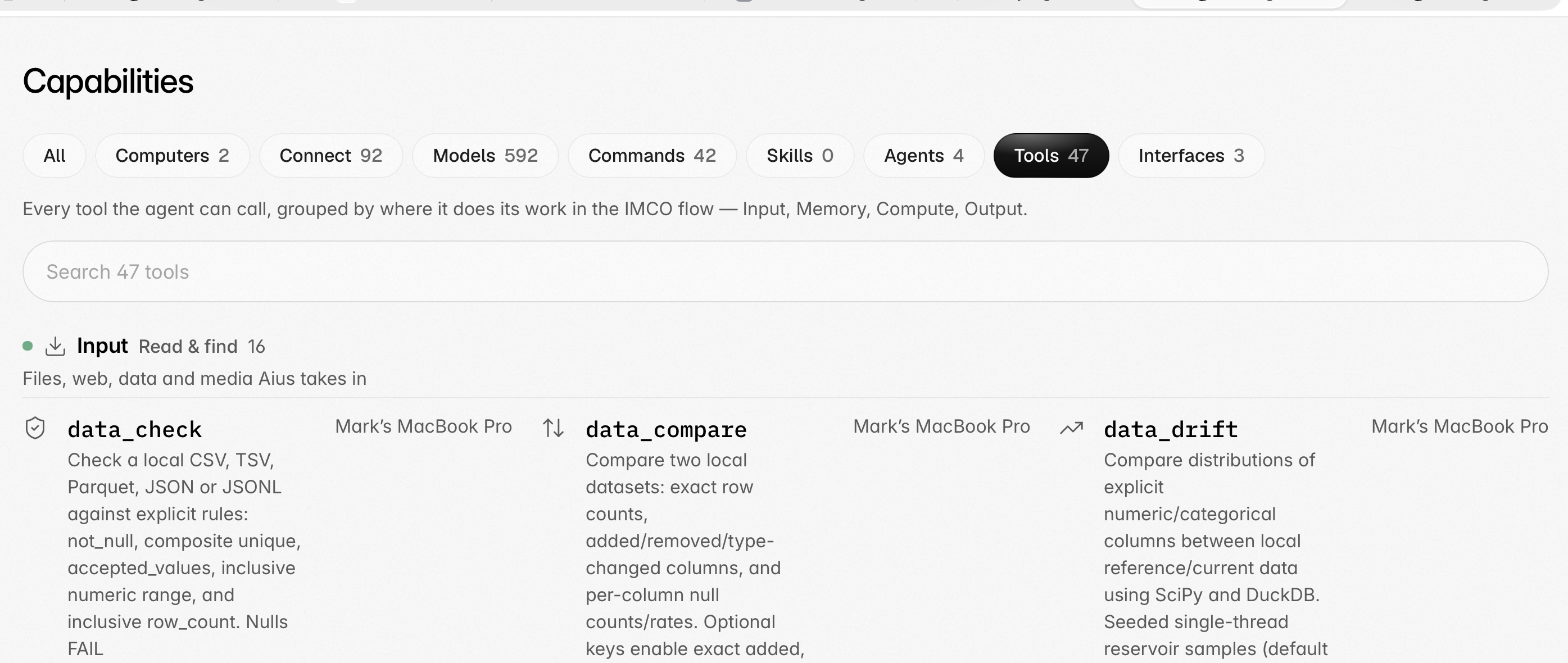
anthropics/skills,obra/superpowersand the team’s own). Theskill-explorerskill lists a trusted repository’s skills, shows eachSKILL.mdfor your review, and installs the one you pick into.agents/skills/. - Agents and Tools — the agents your terminals report and the full tool inventory, grouped by where each tool spends its work.
- Interfaces — the surfaces live today (the TUI, AIUS Light, dictation) and the always-on gateways that are designed but not built yet (WhatsApp, Telegram, Slack, Discord, Signal, iMessage), each marked clearly.
Try it — ask Aius
Every item carries example prompts behind a small Try it — ask Aius toggle. Clicking a prompt opens the AIUS Launcher project with that prompt ready to send — for example “make Claude Fable 5.2 my default model”, “connect Slack”, or “summarize what I missed in #team overnight”.