

Requirements
Dictation useswhisper-cli, ffmpeg and ffprobe on your computer. On macOS install them with
brew install whisper-cpp ffmpeg; on Linux install the equivalent packages (whisper.cpp and FFmpeg). The speech
model — whisper.cpp’s multilingual small, 465 MB — downloads itself into the AIUS cache the first time you
dictate, so the first transcription takes longer while it downloads; after that it is instant.
The download is skipped on computers that cannot run the model well — under 8 GB of memory, under 4 CPU
cores, under 2 GB of free disk, or a connection too slow to fetch the model quickly. Dictation then says why
instead of installing, and simply tries again next time, so an upgraded computer (or a faster network) picks it up
without any setup.
In the terminal
The prompt has one dictation control — the◉ dictate chip at the right of the prompt bar. While the speech
model downloads and warms up in the background (right after aius starts), the chip reads ◌ dictation… and is
not clickable yet — give it a moment. Click it (or run /dictate) to start recording; the chip turns red and
shows ● REC with a live timer against the two-minute
limit. Click it again — or wait for the limit — to stop. AIUS transcribes the recording and drops the text into
your prompt as a draft: review or edit it, then send it yourself. Stopping a recording never sends anything.
Double-click the chip to pause and again to resume — the chip turns amber and reads ❚❚ while paused. Hold the
chip for about half a second to open its side menu: pause/resume the recording, discard it, or pick a language.
/dictate-pause and /dictate-cancel do the same from the keyboard.
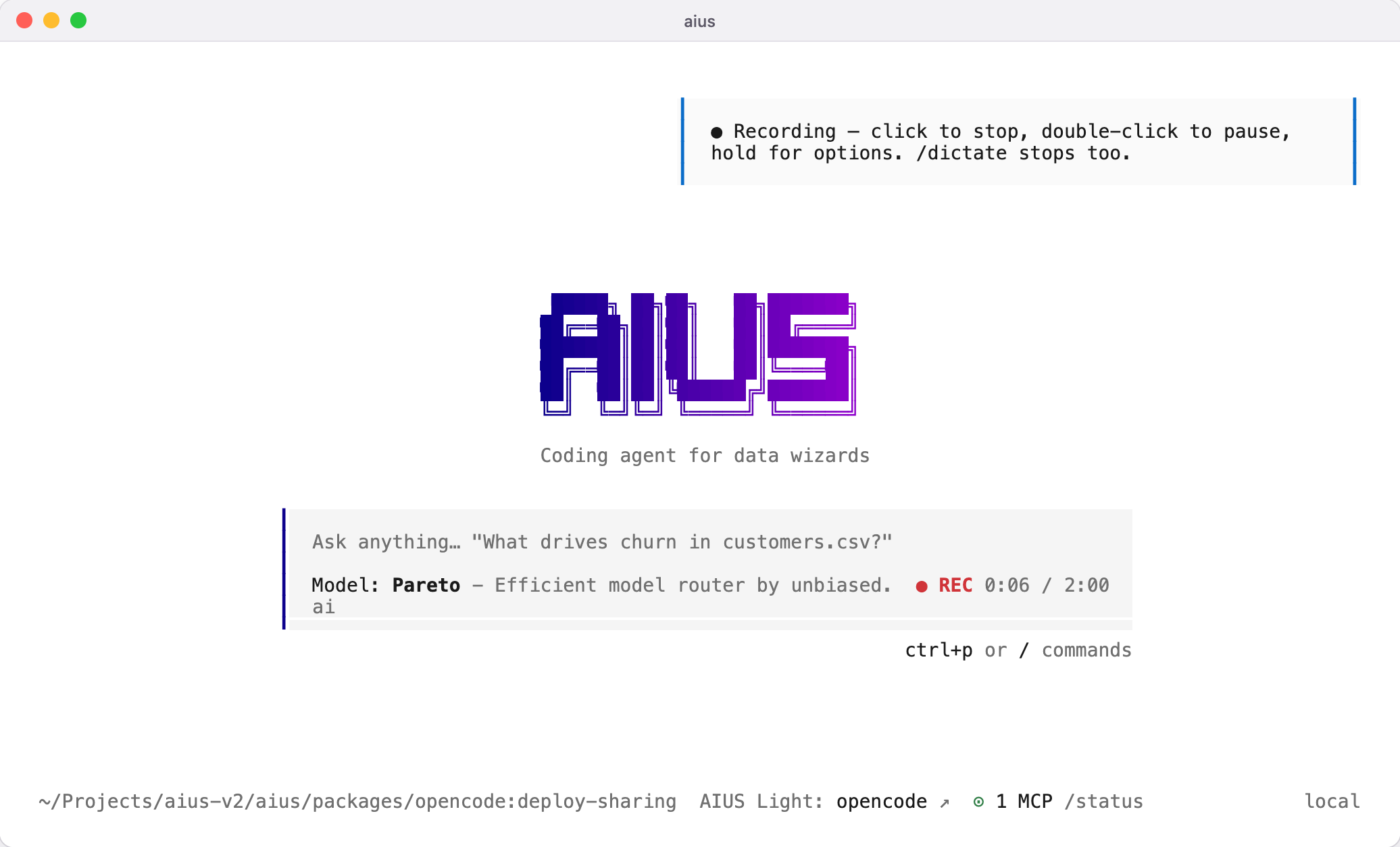
Recording in the terminal
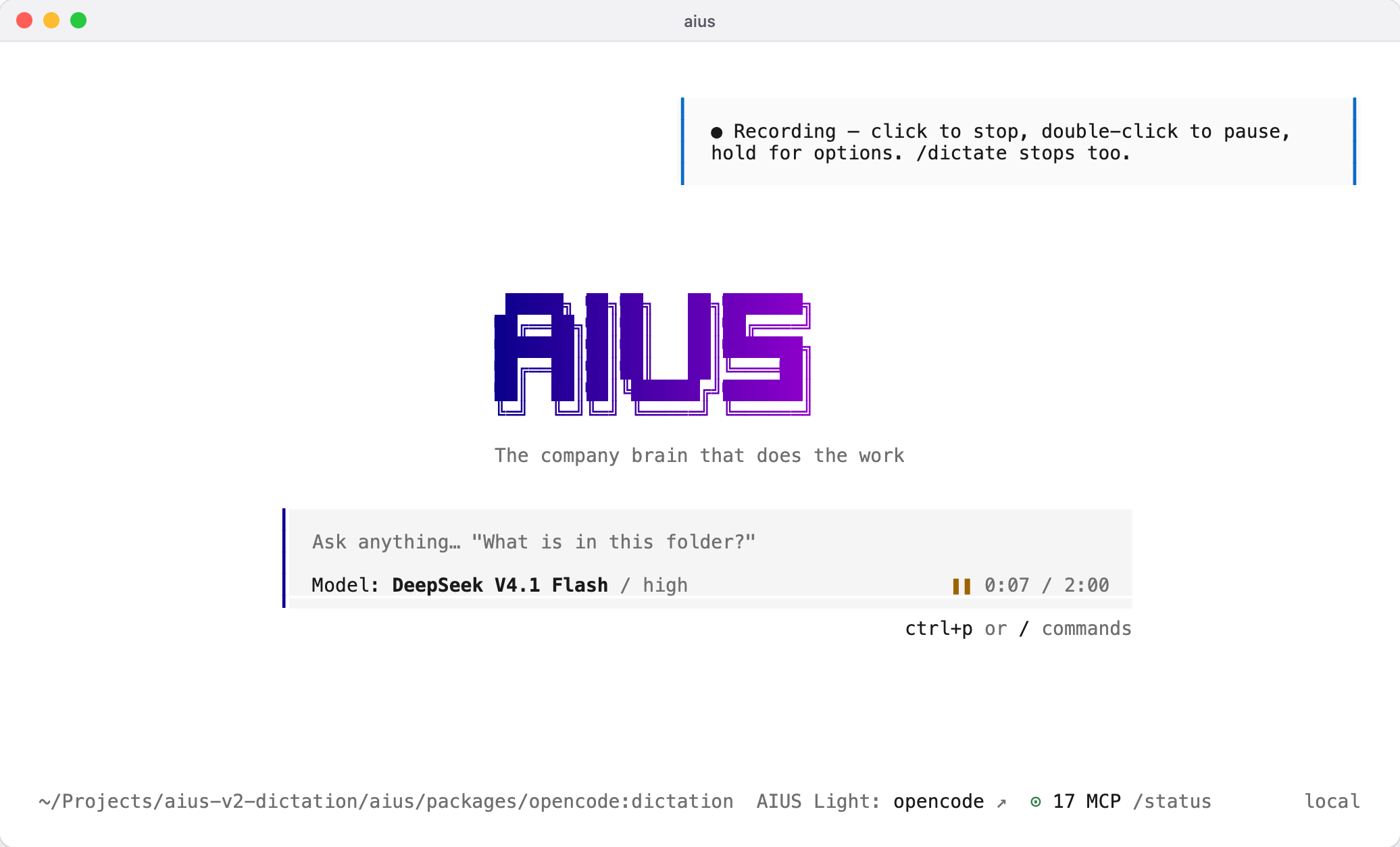
Recording paused — the chip turns amber and the timer holds
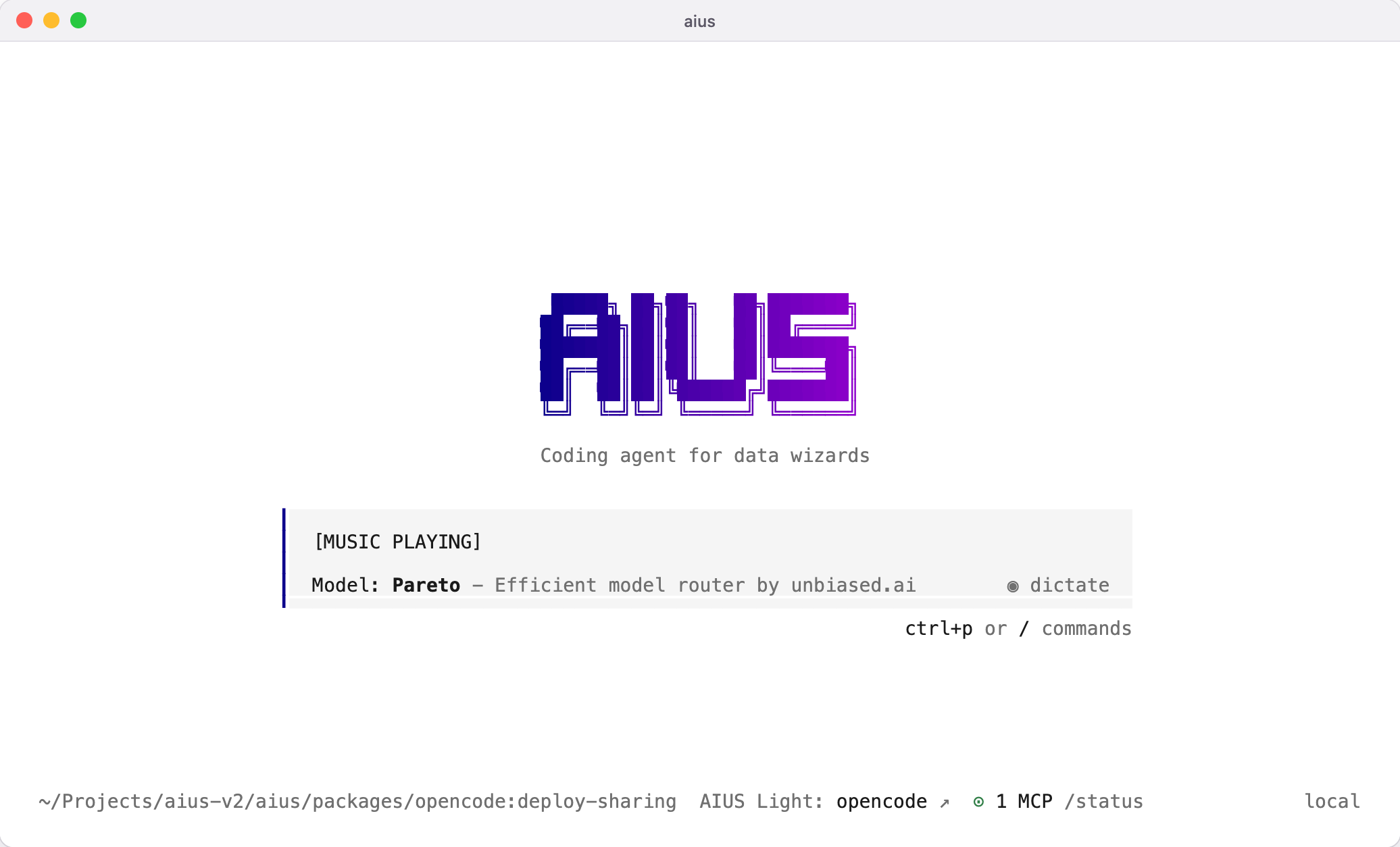
The transcript lands as an editable draft
/dictate offers the
browser recorder described below instead.
Languages. Dictation detects the spoken language automatically across the model’s 99 supported languages. To pin
one — useful for short or noisy clips — open the chip’s hold menu, run /dictate-language, or use the palette
command Dictation language; the choice stays for later recordings.
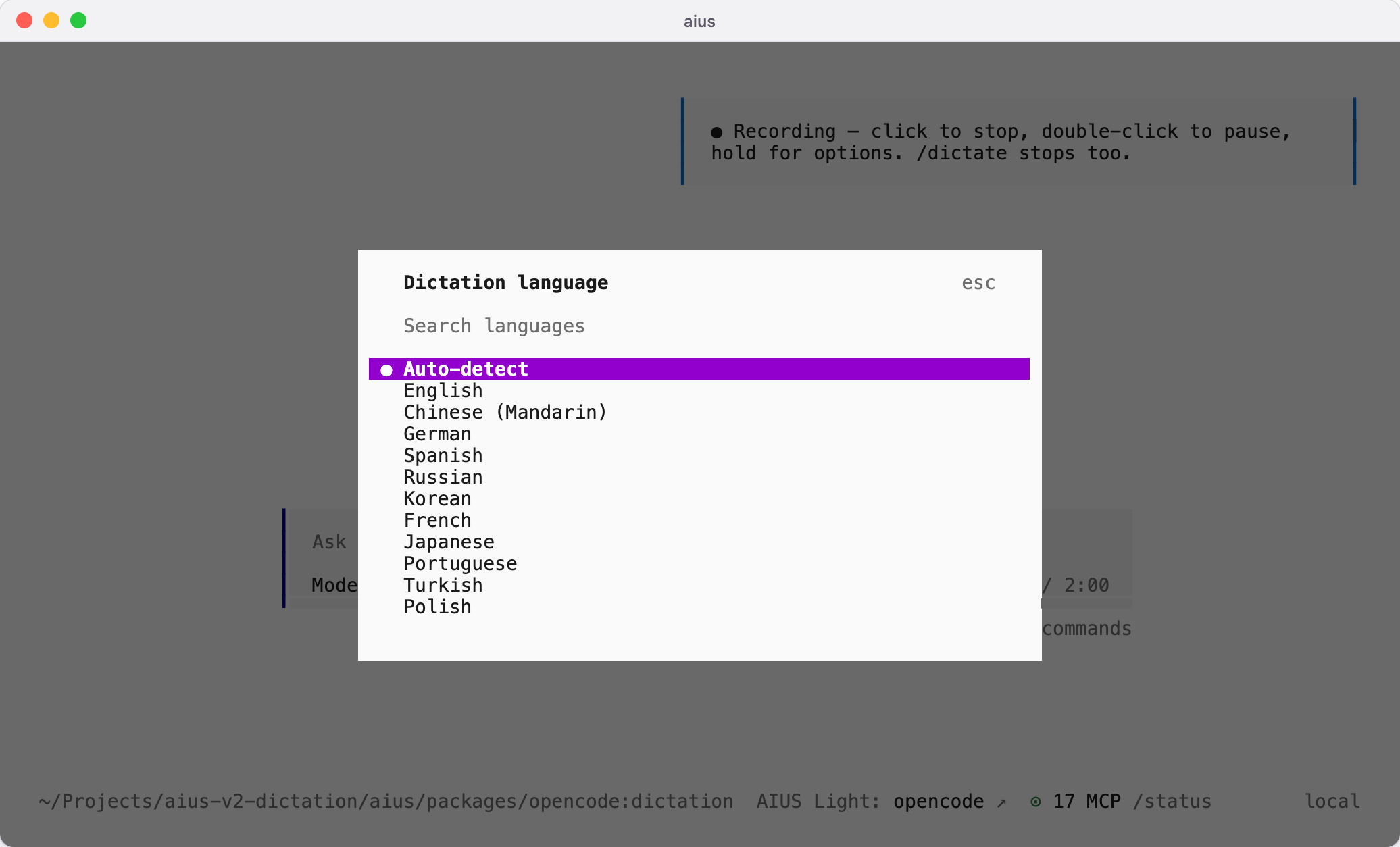
Picking a dictation language in the terminal
In AIUS Light
The conversation composer in a project’s AIUS panel has the same one-button control: a single microphone button whose icon and colour mirror the state — a mic at rest, a filled● in pulsing red while recording, ❚❚ in amber
while paused and ◌ while transcribing. Click it, allow microphone access when the browser asks, and speak — a
level meter and a ● REC timer against the two-minute limit show while it records. Click again to stop and
transcribe; double-click to pause and resume. The text replaces your current selection in the composer as a draft
you can edit before sending.
Hold the button (or right-click it) to open the same side menu — a language picker with small icon buttons for
pause/resume ❚❚, discard ✕ and close ▾, each with a tooltip. Escape while recording discards it, and
otherwise closes the menu.
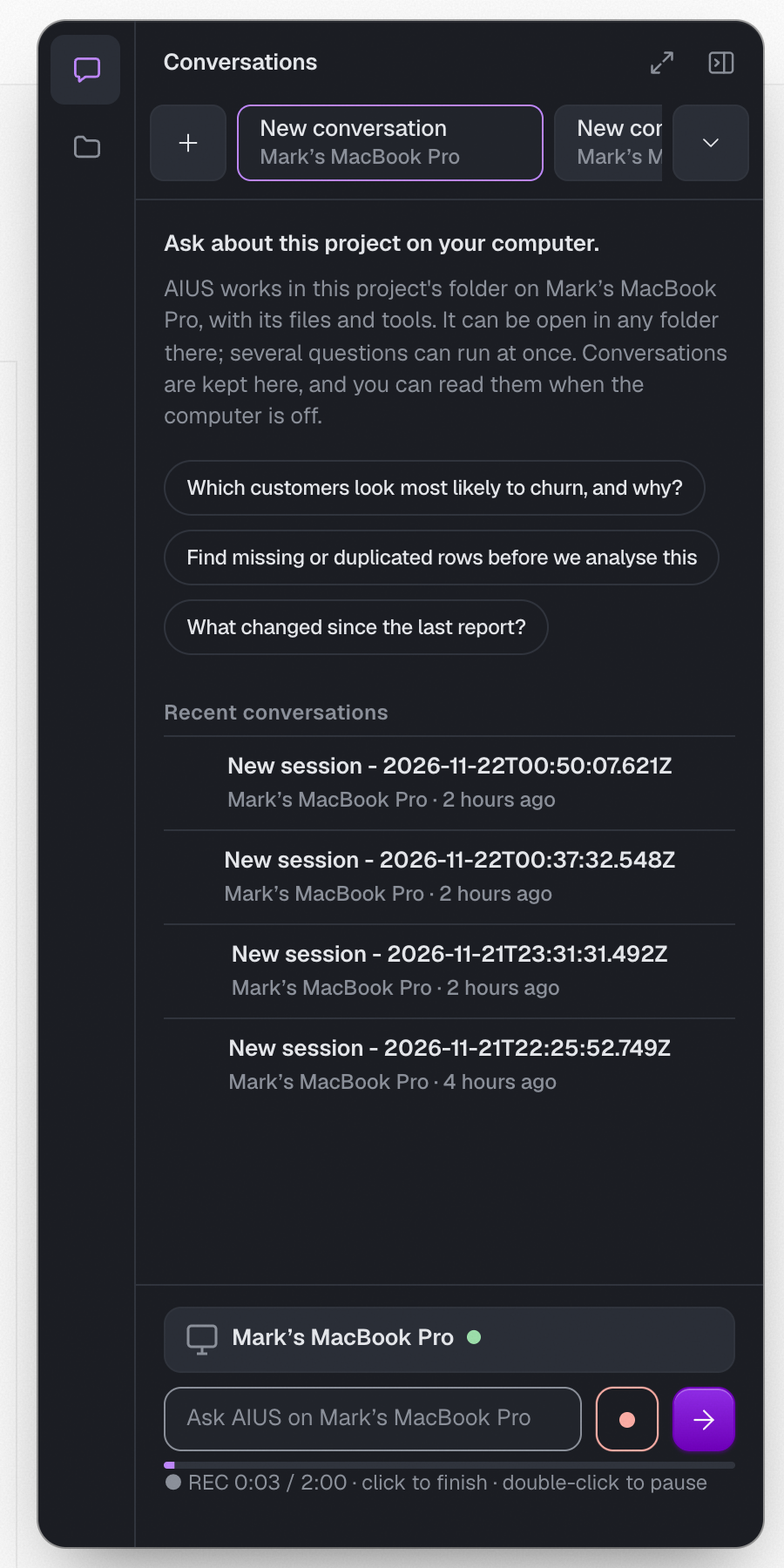
Recording in the AIUS Light composer
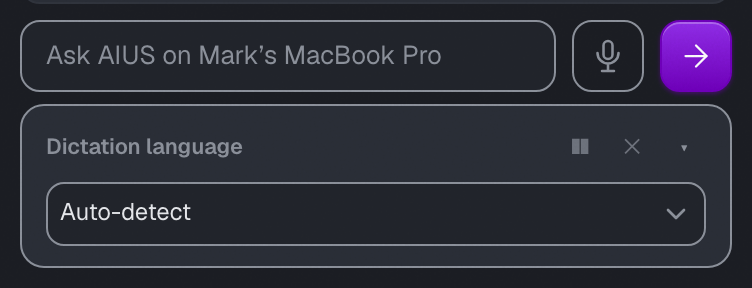
The composer in AIUS Light with its dictation menu open
aius running in a terminal on the same computer — that keeps your voice on
your machine. When no local terminal answers, the composer falls back to AIUS’s own dictation service and says
“Transcribing on the AIUS service…” so you always know where your voice goes. Dictation
in AIUS Light is tested in Chrome and Edge; if your browser does not allow the loopback connection the composer
needs to reach your computer, it uses the hosted service instead.
The browser recorder
When the terminal cannot reach your microphone itself — no permission, no audio stack —/dictate offers to open
a small dictation page in your browser instead. It runs on your computer (served by aius, on
http://127.0.0.1:8766), shows the same single-button control with pause, discard and language in its hold menu,
and gives you an editable draft field. Press Insert draft to drop the text into the waiting AIUS prompt, or
edit it first. Closing the terminal or the prompt invalidates the page’s insert link; reopen it with /dictate.
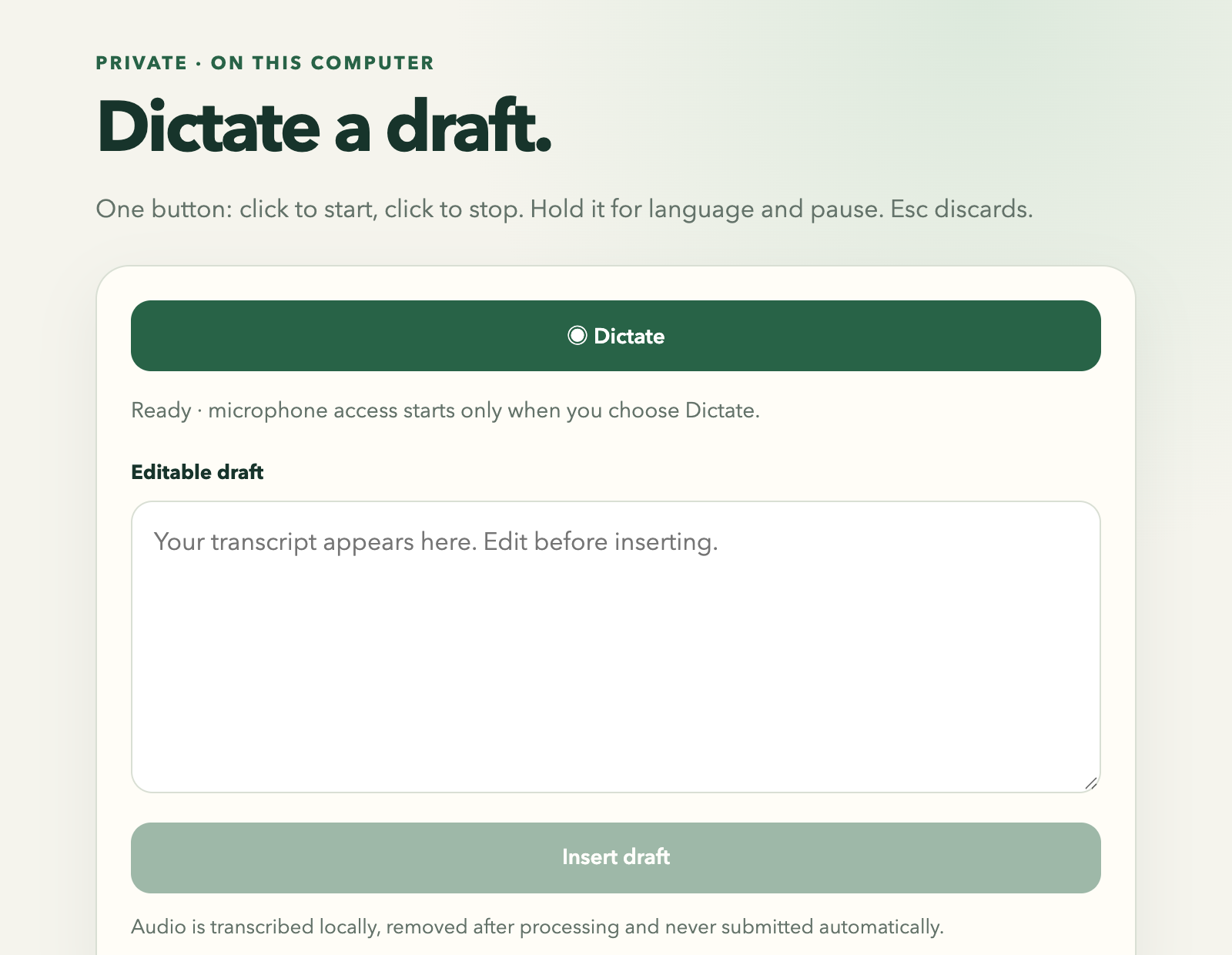
The browser dictation page, opened from the terminal
Configuration
Defaults suit most computers; these environment variables adjust dictation when needed:Troubleshooting
The dictate control does not appear in the TUI. Updateaius to the current release and restart it — the chip
also stays hidden while dictation is unavailable: missing whisper-cli/ffmpeg/ffprobe, or a computer below
the model’s floor (see Requirements). /dictate always says exactly which case it is.
“Local dictation is unavailable” in AIUS Light. No terminal on this computer answered. Start aius in a
terminal on the same computer, then retry — or, where AIUS’s hosted dictation service is enabled, the composer
uses it automatically and says “Transcribing on the AIUS service…” instead.
“dictation tools missing” or a status that never turns ready. Install whisper-cli, ffmpeg and ffprobe —
on macOS brew install whisper-cpp ffmpeg; on Linux install whisper.cpp and FFmpeg from your distribution or
build whisper.cpp from source. Restart aius afterwards.
Dictation says the computer needs more resources. The speech model download was deferred because the machine
is under 8 GB of memory, has fewer than 4 CPU cores, has under 2 GB of free disk, or the connection is
too slow for the 465 MB model. Nothing is installed; dictation retries automatically on the next attempt, so
more memory, disk or a faster network makes it available without further setup.
The first transcription takes a while. That is the one-time model download. Later transcriptions reuse the
cached model and return in about a second for a short clip on a recent machine.
macOS records nothing or recording fails immediately. Open System Settings → Privacy & Security →
Microphone and enable access for your terminal app, then restart the terminal.
The browser does not ask for microphone access, or said “denied”. Reset the permission for the site (the lock
icon in the address bar → Site settings → Microphone → Allow), then click the microphone button again. On macOS
also check the browser itself is allowed under System Settings → Privacy & Security → Microphone.
Linux picks the wrong microphone or no audio. Set the recording source in PulseAudio/PipeWire as the default
input, or point AIUS_DICTATION_DEVICE at the device name ffmpeg should use.
Windows specifics. Dictation records and transcribes on Windows, but pause/resume is unsupported — the pause
control has no effect there. If device detection fails, set AIUS_DICTATION_DEVICE to the microphone’s name as
ffmpeg -list_devices true -f dshow -i dummy reports it.
“No speech recognized” or a wrong-language transcript. Speak longer, clearer audio close to the microphone,
and pin the spoken language (/dictate-language, or the hold menu on any surface) — auto-detection can miss on
short or noisy clips.
Two terminals are open and only one serves AIUS Light. The first aius owns the loopback port; the second
keeps its own in-terminal dictation regardless. Dictating from the TUI works in either.
Privacy
- Audio is transcribed on your computer by a local speech model; nothing about the recording leaves the machine.
- Recordings are limited to two minutes and 20 MB, and the audio files are deleted once the transcript is made.
- A dictated prompt is always a draft until you send it yourself.
- For usage statistics AIUS counts only that a dictation happened — its surface (terminal, composer or browser page), duration, language, whether it succeeded, and the transcript’s length. The audio and the words are never sent anywhere.